Tanglaw by AHA XTeacher's Guide Open the app
Teacher's Guide · Gabay ng Guro

From a stack of papers to tomorrow's lesson.

Tanglaw checks a test on the teacher's phone, shows what the class missed, writes the remedial lesson, and fills in the files the coordinator expects. It works with no signal, and learner names never leave the phone.

Grades 1 to 6MATATAGILAW lesson plansDO 15, s. 2026ARAL-ready

The demo film · 3 min 33 s

Meet Tanglaw, end to end.

From the night-time tally to the lesson that fixes it, narrated by Teacher Rayla, with captions. Every phone screen is the real app with an illustrative class.

Download the film (1080p MP4, 40 MB)Subtitles (.srt)

The guide, in eight chapters

Everything a teacher does, in the order they do it.

Follow along on your own phone with the demo class, or add your own class and test.

0Set up the phone

Install it once. Then it works without signal.

Tanglaw is a web app that installs like a phone app. Open it once with signal; after that every screen works offline.

  1. On an Android phone, open tanglaw.prototype.embiggenx.ch in Chrome.
  2. Tap Chrome's menu, then Add to Home screen. Tanglaw now opens from its own icon.
  3. Pick EN or FIL at the top. Every screen switches language.
  4. Open Settings and type your name and school. The school name is printed on answer sheets.

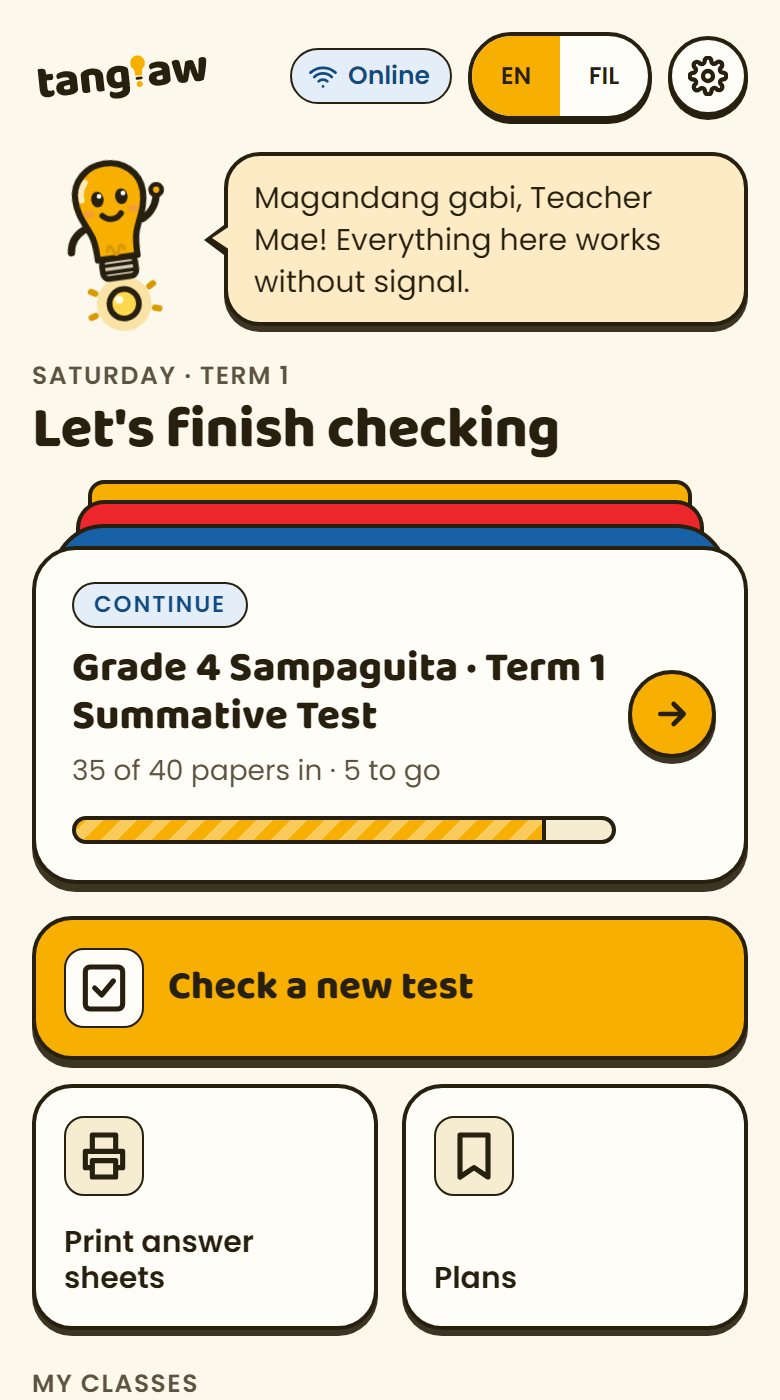
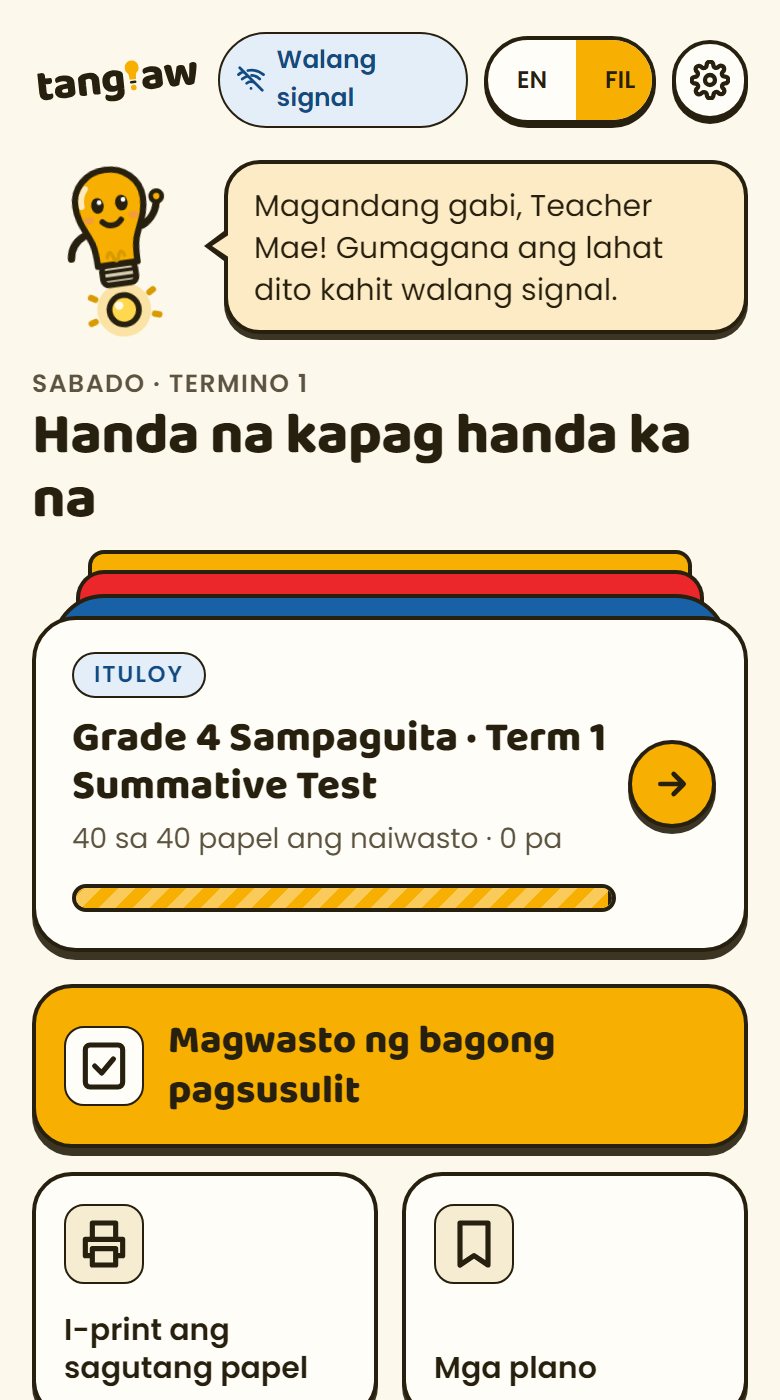
The demo class is ready for youGrade 4 Sampaguita: 40 learners and a Term 1 Mathematics test, 35 papers already checked. Try everything on it. Settings › Reset demo data starts it over.

Home screen with the demo class
Home: continue where you left off, check a new test, print sheets.

1Add your class

Paste your list. That's the whole setup.

  1. On Home, tap Add a class.
  2. Fill in the grade (1 to 6), section and subject.
  3. Paste your learner list, one learner per line. Add , M or , F after a name if you like.

Names stay on this phoneThe list is saved only on the phone. It is never sent anywhere, even when the phone has signal.

Learners · saved on this phone only Paste your learner list Abad, Juan P., M
Bautista, Maria L., F
Cruz, Andrea S., F
Dela Cruz, Paolo R., M
Enriquez, Liza M., F
…
One learner per line, with ", M" or ", F" if you like.
An example list. One learner per line.

2Set up the test

Type the key. Tag each item's skill.

  1. Open the class and tap New test: Summative Test 1 or 2, Term Exam, or a quiz.
  2. Set the number of items. Term exams have 40; summative tests have up to 20 (DepEd DO 15, s. 2026).
  3. Type the correct answers on the keypad, then Save answer key.
  4. Tag which skill each item tests: a range (From item 1 To item 8) and its MATATAG competency. All 306 Grades 1 to 6 Mathematics competencies are built in.

Why tag skills?Tags turn item scores into "the class missed perimeter of composite figures". That's what the remedial lesson is built on.

How will you check these papers?
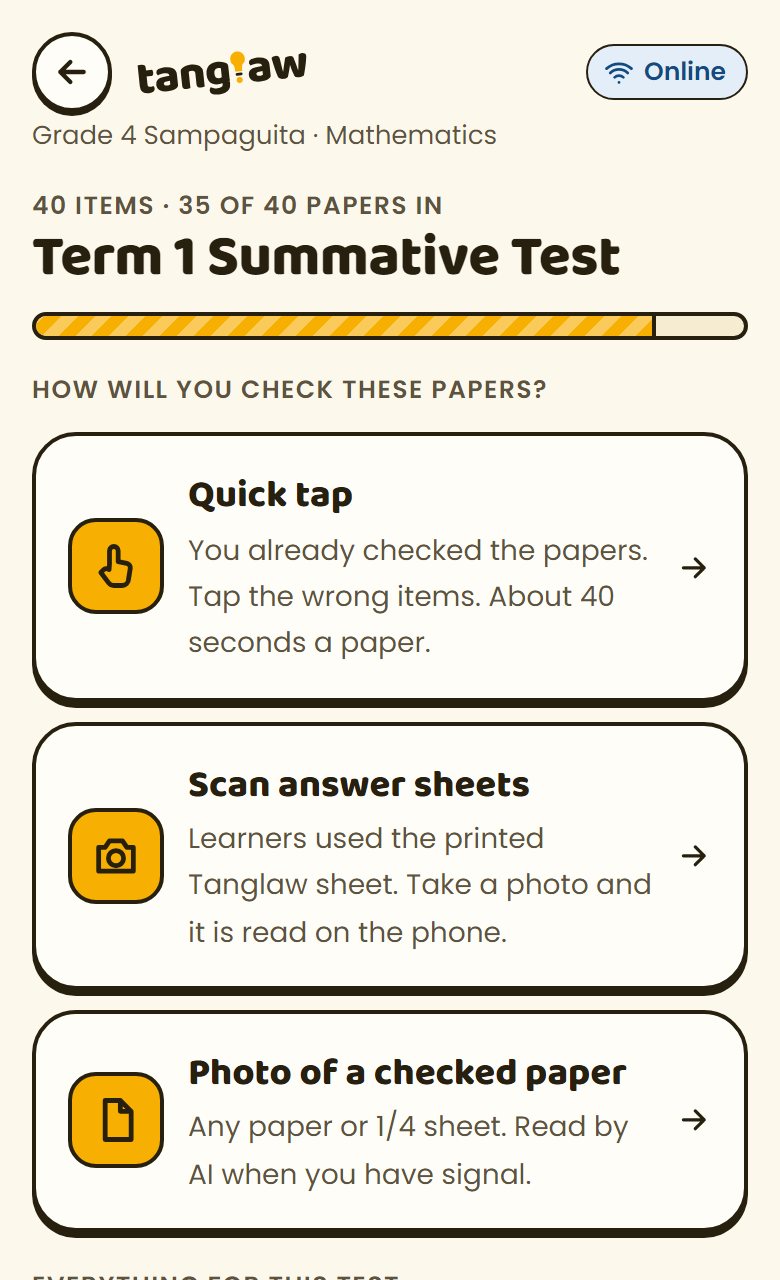
With the key saved, choose how you'll check the papers.

3Print answer sheets

Forty answer sheets, one tap.

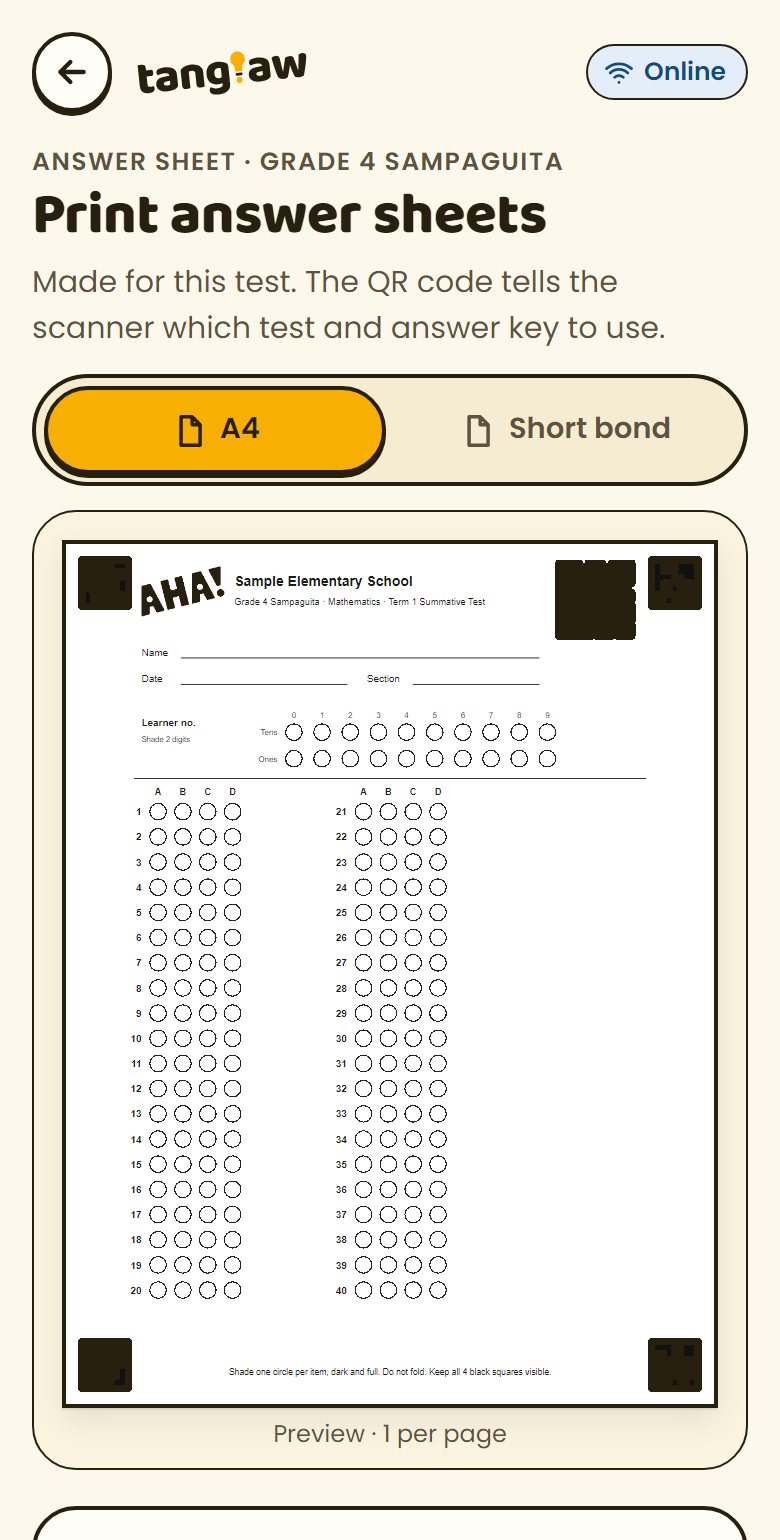
Each sheet carries the AHA logo, a QR code that tells the phone which test and key it belongs to, and four black corner squares the phone uses to read it.

  1. On Home, tap Print answer sheets.
  2. Choose A4 or short bond, 1 or 2 sheets per page, and copies: the class, the class plus 5 spare, or 1 master.
  3. Tap Print 40 copies, or Share PDF to print somewhere else.

No printer at school?Print one master anywhere and photocopy it. Every copy still scans. Or skip sheets entirely: Quick tap needs no paper.

Answer sheet preview with the AHA logo
The sheet preview, made for this test.

4Check the papers

Three ways in. Mix them in one class.

With printed sheetsScan

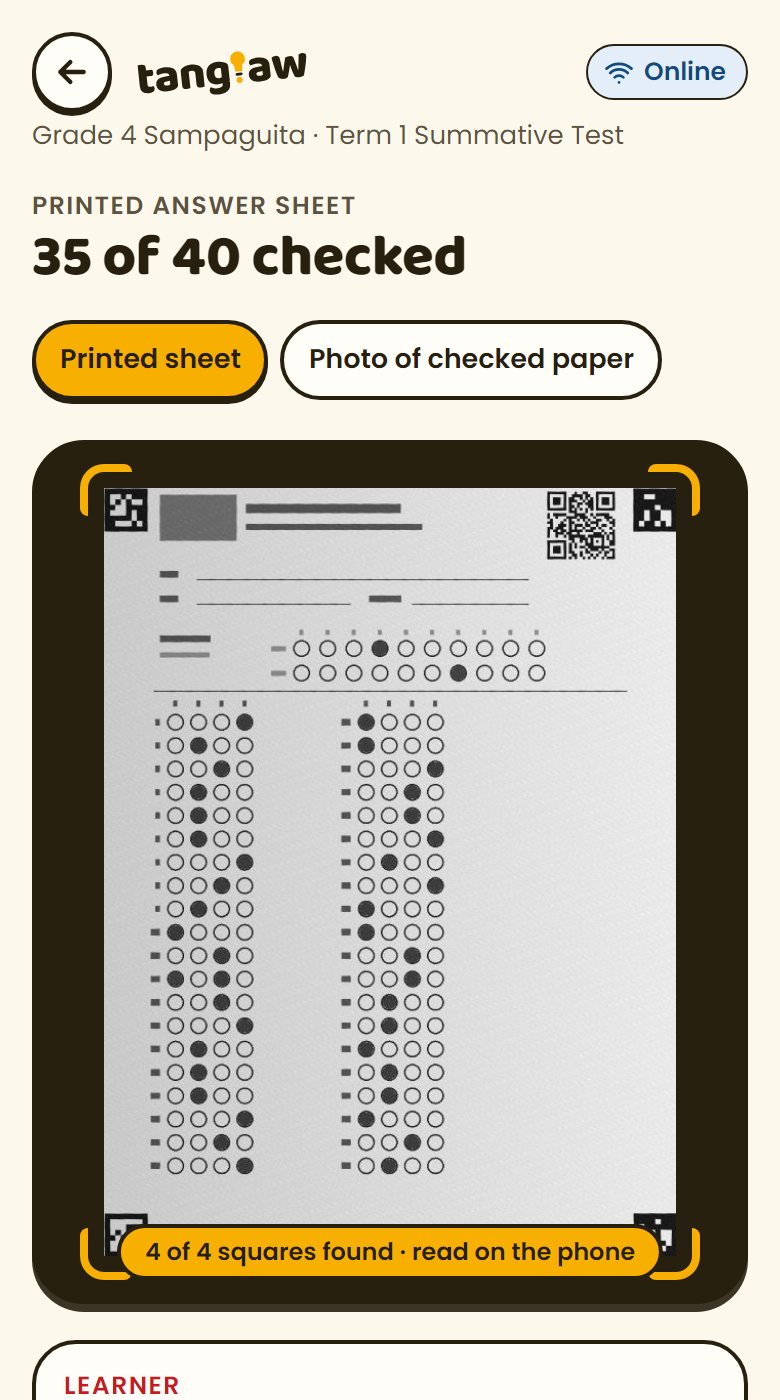
Hold the phone flat over a sheet with all four black squares in view. It reads every bubble on the phone in under a second, with no signal. Anything unclear is flagged for you.

No printerQuick tap

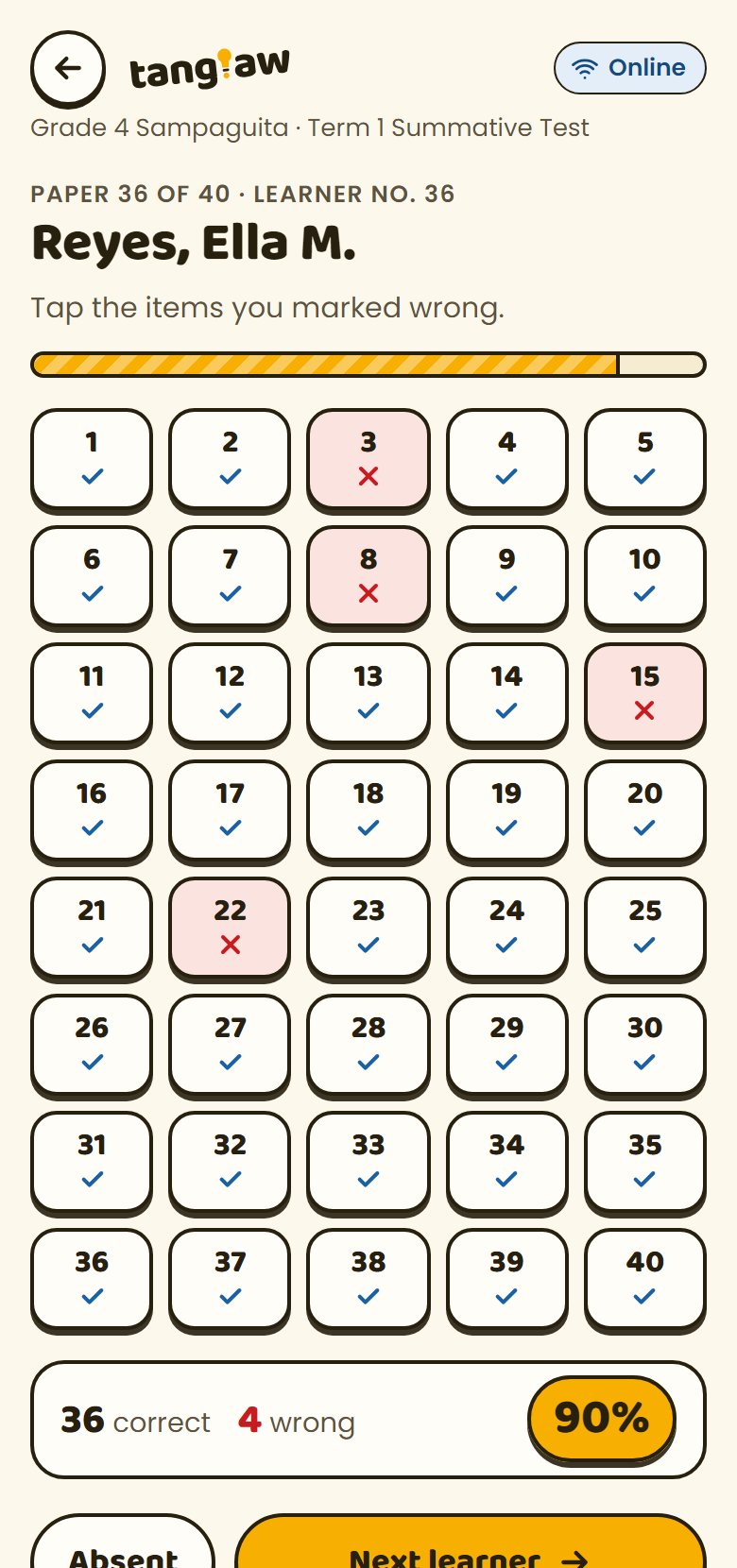
Check the paper the usual way, then tap the items you marked wrong. About forty seconds a paper. Or switch to Type each letter to record what each learner chose.

Checked by hand alreadyPhoto

Photograph any checked paper: the test paper, ¼ pad paper or a tally. The name is hidden first. AI reads the marks once there's signal, and you confirm each one.

A scanned sheet with 4 of 4 squares found
Scan: the four squares lock, the learner number is read from the sheet.
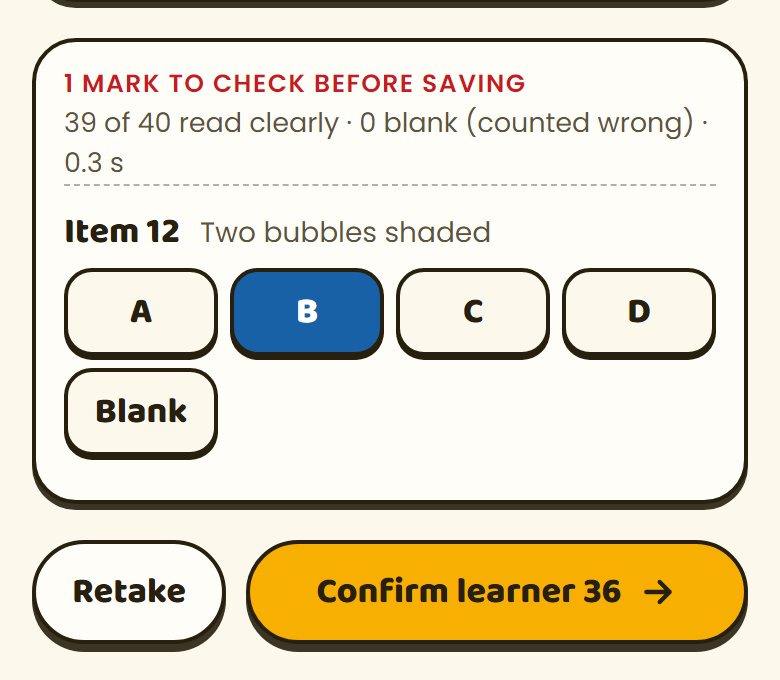
Item 12 flagged: two bubbles shaded, B chosen
A double mark on item 12, fixed in one tap.
Quick tap with four items marked wrong
Quick tap: 4 wrong, 36 correct, 90%.

For a clean scanLay the sheet flat in even light, away from your own shadow, with all four corner squares in the frame. Photos from the gallery work too.

5Read the results

The item analysis, already done.

Results appear as soon as papers are in and update with every paper.

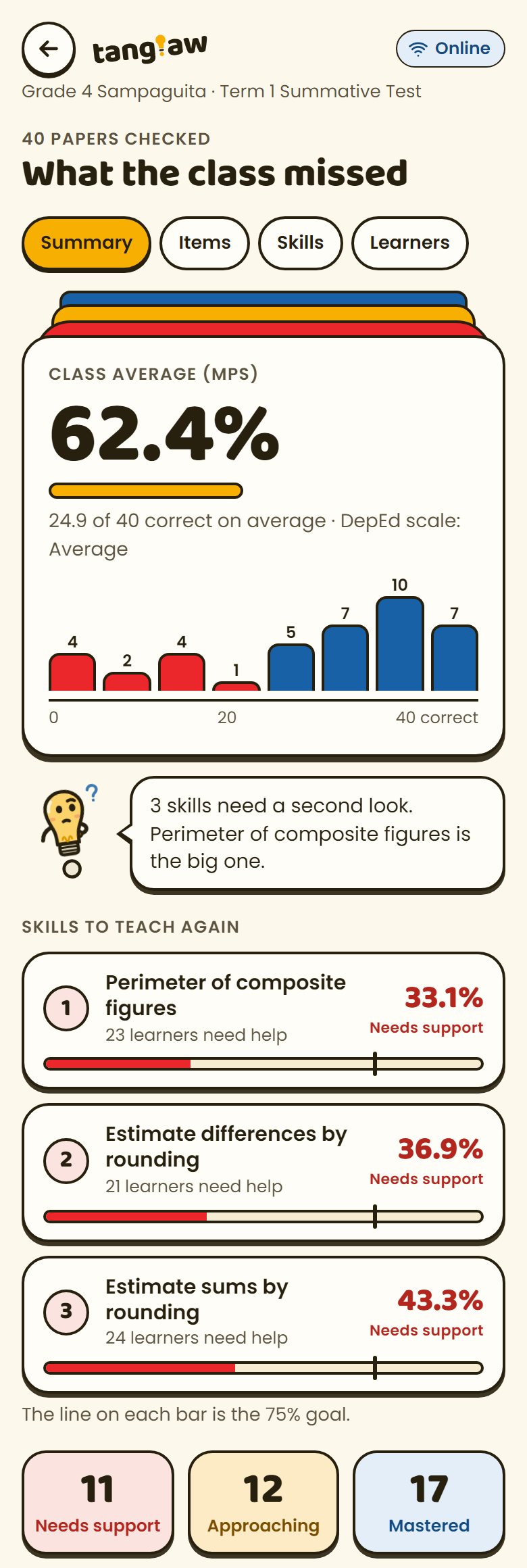
  1. Class average (MPS) with DepEd's descriptor, and the spread of scores.
  2. Skills to teach again: the three skills the class missed most, each with a bar up to the 75% mastery line. Change the cutoff in Settings if your division uses another.
  3. Learner groups: Needs support (below 50%), Approaching (50 to 74%), Mastered (75% and up). The groups carry into the lesson plan.
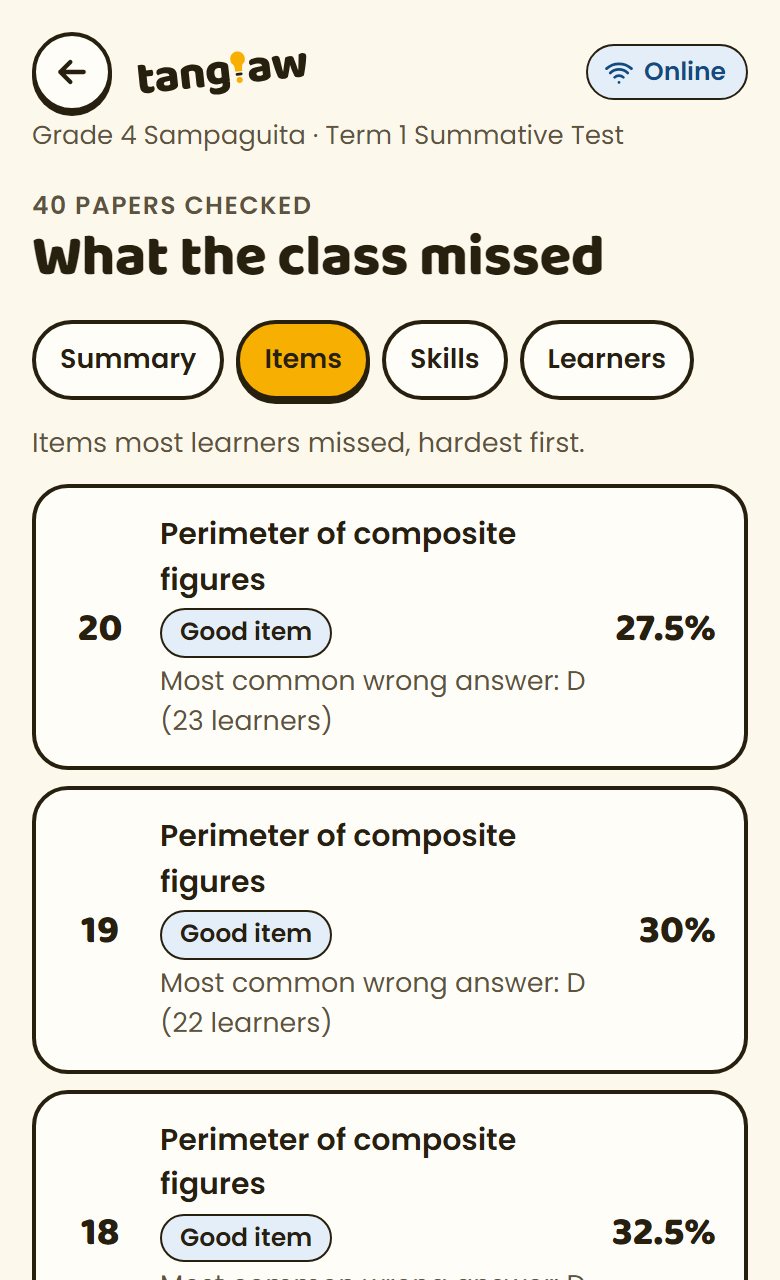
  4. Items: the items most learners missed, hardest first, each with the wrong answer most learners chose, and a flag: good item, revise, or check the key.

For the coordinatorDifficulty and discrimination (upper and lower 27%) and the standard deviation are in the coordinator details under Summary: the same numbers as the division's calculator.

Results summary with MPS 62.4%
MPS 62.4% and the skills to teach again.
Items, hardest first, with common wrong answers
Items, hardest first.

6Teach it again

A remedial lesson, one activity per group.

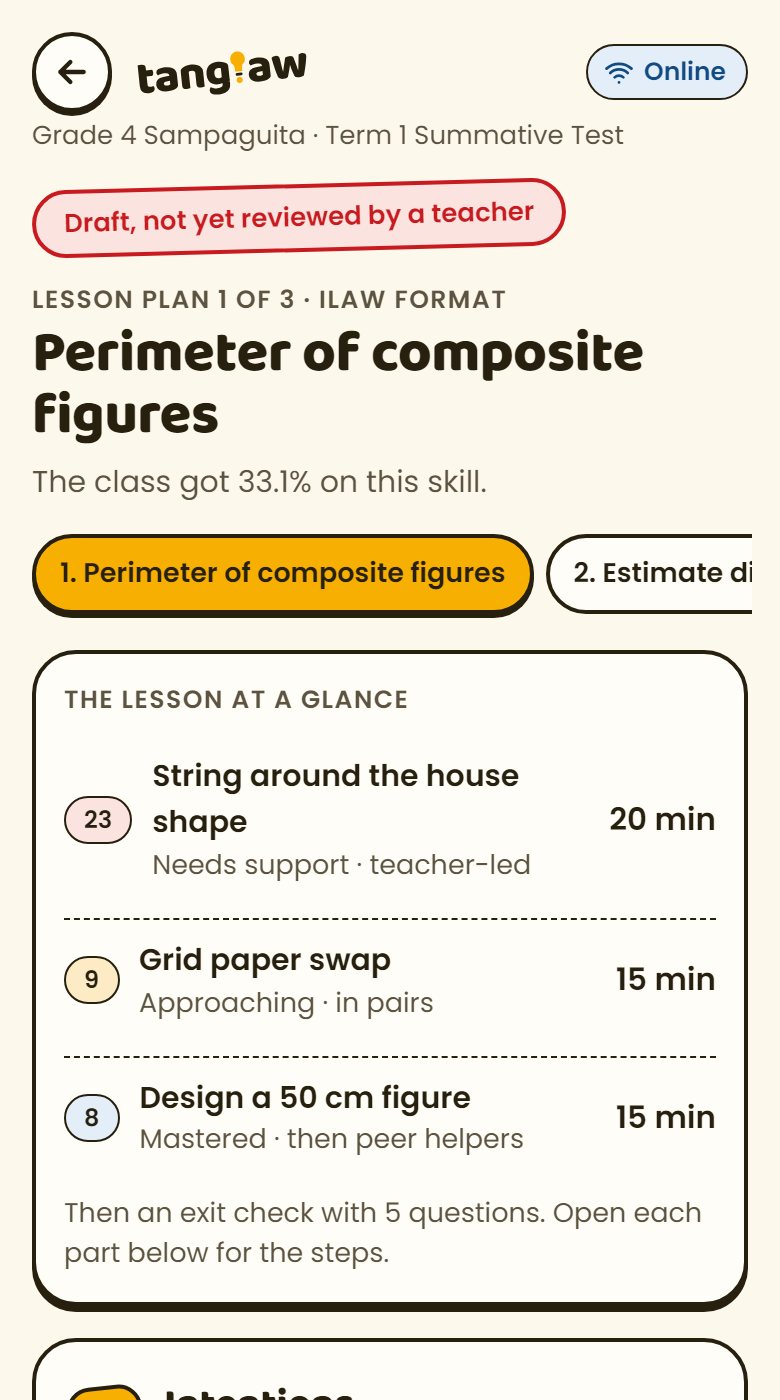
Tap Make the lesson plan. Tanglaw writes one lesson for each skill the class missed, in DepEd's ILAW format: Intentions, Learning Experience, Assessing Learning, Ways Forward.

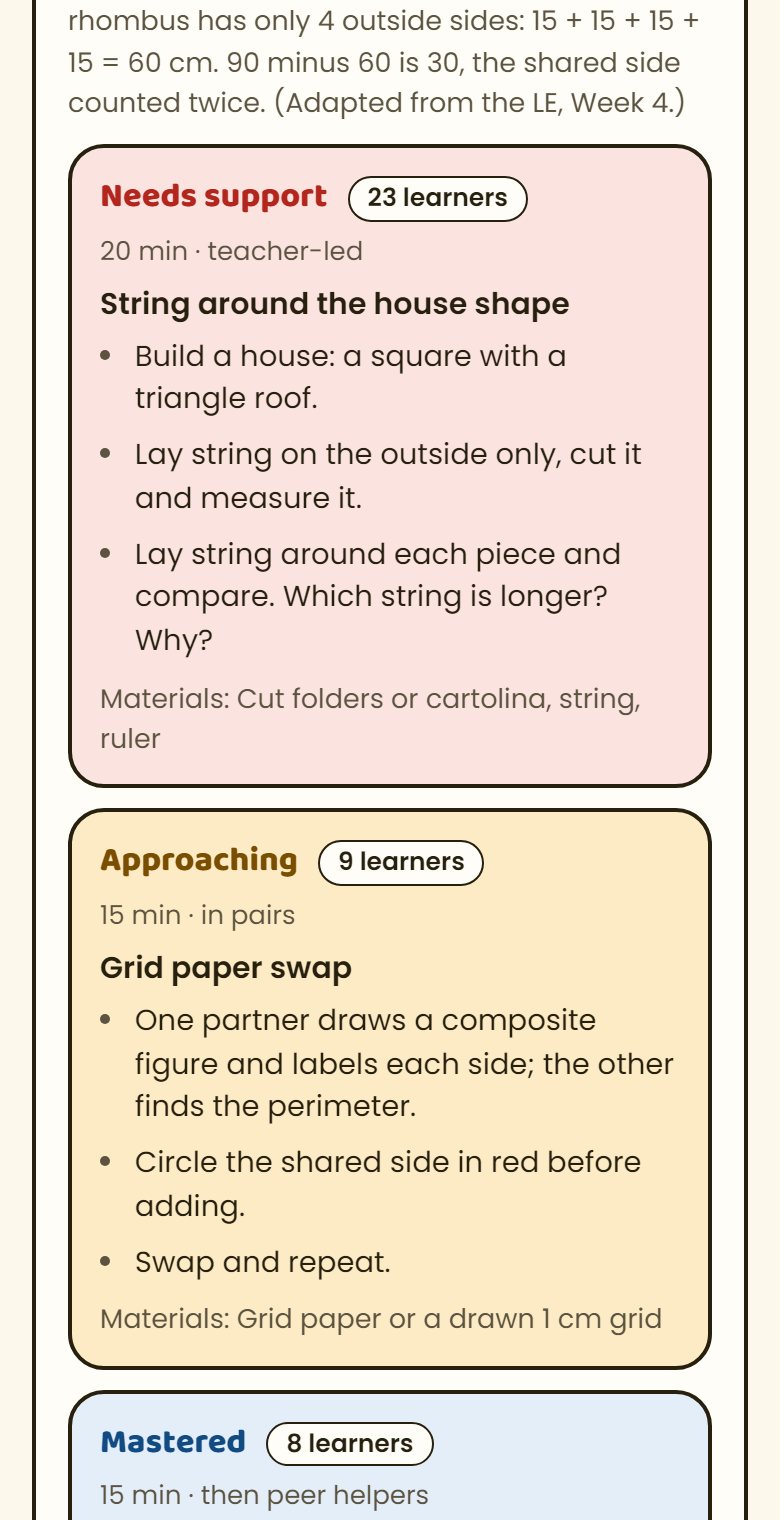
  1. Read The lesson at a glance: one activity for each learner group, with minutes.
  2. Open any part for the steps, the materials and the 5-question exit check.
  3. With signal, tap Request tailored plans for a version written for this class. Only numbers are sent, never names.
  4. After teaching, tap Mark taught. Export .docx gives a Word copy.

Ready for ARALEach plan works as an ARAL session plan, groups of up to 15. Plans say "Draft, not yet reviewed by a teacher" until you've read them.

ILAW lesson plan at a glance
The lesson at a glance.
Activities for each learner group
An activity for each group.

7Share with your coordinator

The files they expect, filled in.

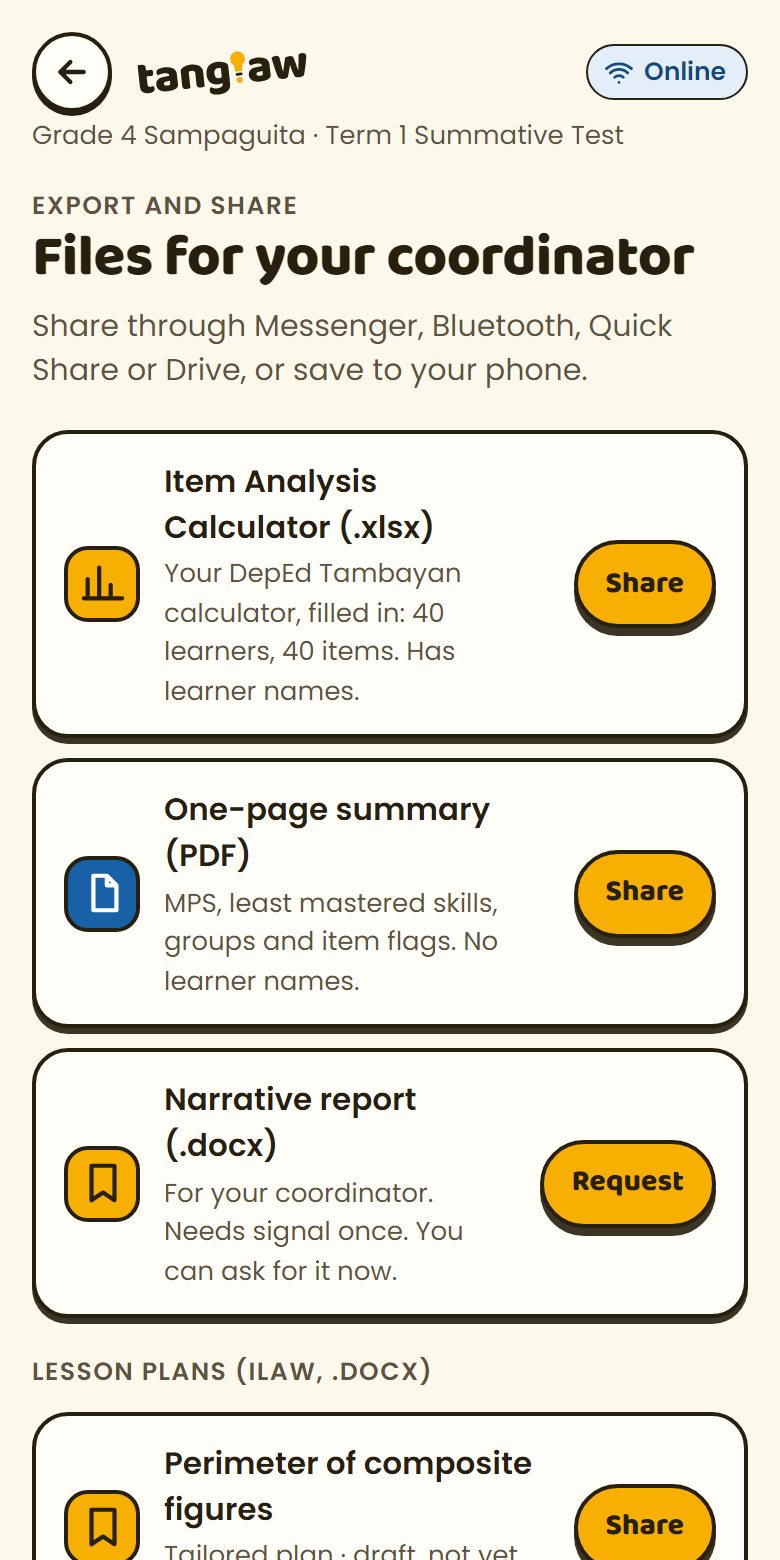
Tap Files on Results. Share through Messenger, Bluetooth, Quick Share or Drive, or save to the phone.

  1. Item Analysis Calculator (.xlsx): the DepEd Tambayan calculator divisions use, filled in for up to 40 learners and 40 items. It has learner names, so share it only with your coordinator.
  2. One-page summary (PDF): MPS, least-mastered skills, groups and item flags. No names.
  3. Lesson plans (.docx): one per skill, in ILAW format.
  4. Narrative report (.docx): needs signal once. Request it any time; it's made when the phone connects.
Files for your coordinator
All but the narrative report are made on the phone.

8Offline, privacy, language

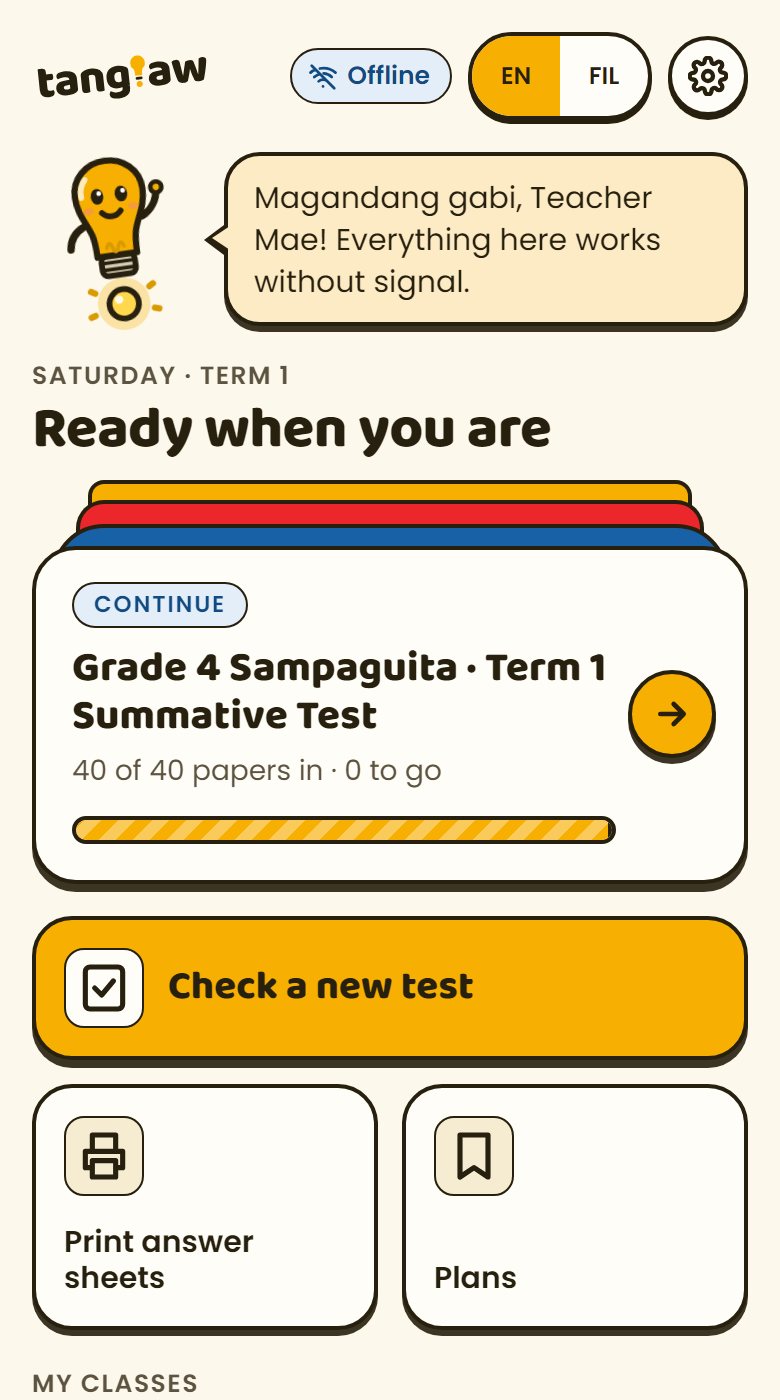
No signal, no problem. No names leave.

  1. Offline. Every screen opens with no signal. Work that needs signal (tailored plans, the narrative report, reading photos) waits in the AI queue and runs by itself when the phone connects.
  2. Privacy. Learner names are kept only on this phone. The AI only ever receives numbers and skill names.
  3. Backup. Everything lives on the phone, so save a backup now and then: Settings › Save backup. Keep it safe, it has learner names. Restore moves your work to a new phone.
  4. Language. Switch between EN and FIL any time. Files and lesson plans stay in English for the division.

Gumagana kahit walang signal.It works even without signal: in the classroom, at home, or on the jeep.

Home screen showing Offline
Offline, everything still opens.
Home screen in Filipino
The same screen in Filipino.

Status · 18 October 2026

What works, and what doesn't yet.

Graded with Tanglaw's own mastery bands, the same ones teachers see for their learners.

AHA Learning Center × Embiggen X

Report Card

Prototype · Term 1

NameTanglaw by AHA XGradePrototype (MVP)Date18 October 2026
Learning areaMarkRemarks
Check
Classes, learner lists, tests, answer keysMasteredGrades 1 to 6 Mathematics, with all 306 MATATAG competencies for tagging.
Answer sheet generatorMasteredA4 or short bond, 1 or 2 per page, AHA logo, bulk copies or one master.
Quick tapMastered"Mark wrong" and "type each letter" modes, absent learners.
Scanning printed sheetsApproachingReads a sheet on the phone in 0.6 s, but only tested on generated sheet photos. Needs a real printed sheet and a real phone camera.
Reading photos of hand-checked papersApproachingThe flow works (name hidden, queued offline, teacher confirms). The AI answers are samples until the AI key is added.
Analyse and remediate
Results and item analysisMasteredMPS, skills, groups, difficulty and discrimination, flags, common wrong answers, using the same formulas as the division's calculator.
ILAW plans, offlineMasteredGrade 4 Mathematics Term 1 (12 stored lessons). Other grades get a general plan offline.
Tailored plans and the narrative reportApproachingBuilt and queued correctly; sample answers until the AI key is added on the server.
The lesson content itselfNeeds supportThe 12 lessons are drafts. AHA or a teacher has not reviewed them yet.
Report, offline, privacy
Files for the coordinatorMasteredThe filled Item Analysis Calculator (.xlsx), a PDF summary, plans (.docx).
Offline, install, backup, English and FilipinoMasteredEvery screen opens offline. Learner names never leave the phone.
In the real world
Teachers using it with a real classNeeds supportNo classroom pilot yet.
iPhones and older, low-memory Android phonesNeeds supportNot tested yet.
Not built yet
More lessons, more subjectsNot yet taughtStored lessons beyond Grade 4 Term 1; English and Filipino reading.
4 sheets per page, syncing between phonesNot yet taughtToday: 1 or 2 per page, and a backup file to move phones.
Class record, attendance, CebuanoNot yet taughtOutside the prototype's scope.
Mastered built and testedApproaching works, not yet provenNeeds support needs real-world testing or reviewNot yet taught not built
Ready to demo and to try with sample classes.Not yet for a real class's records: first one real printed-sheet test, the AI key, a lesson review and a short teacher pilot. Checked by 41 automated tests and 16 of 16 end-to-end checks on the live site, offline included.
CHECKED
18 OCT 2026

Embiggen X, prototype team

For AHA and Embiggen X

From prototype to pilot, as an ILAW plan.

IIntentions
  • Prove a teacher saves hours on one real test.
  • Prove scanning works on real sheets and ordinary phones.
  • Get AHA's sign-off on the lessons.
LLearning experience
  • Add the AI key so tailored plans and photo reading give real answers.
  • Print a class set, shade, scan with 2 or 3 Android phones, compare with hand checking.
  • AHA teachers review the 12 Grade 4 lessons.
AAssessing learning
  • 3 to 5 teachers run one summative test each.
  • Time checking and analysis, before and after.
  • Count scan errors and fixes per sheet.
WWays forward
  • AHA sends one real exam, its key and Table of Specifications, and 2 or 3 checked papers (names blurred).
  • Decide the next grades and subjects.

Troubleshooting

When something goes wrong.

The scan can't find the four squares

Move back until all four black corner squares are in the frame, hold the phone flat rather than at an angle, and keep your shadow off the sheet. A folded corner can hide a square. You can also take the photo with the camera app and choose it from the gallery.

An item is flagged after scanning

Two bubbles were shaded, or none. Tap the answer the learner meant, or Blank, then confirm. Flagged items are never guessed.

The scan picked the wrong learner

The learner number comes from the number shaded on the sheet. Choose the right learner from the list before you confirm.

"Waiting for signal" won't go away

Open Settings › AI queue and tap Run now once you have signal. Everything else keeps working while it waits.

I changed phones or cleared the browser

Your work lives on the phone. Restore your last backup in Settings › Restore, and save backups regularly until syncing between phones exists.

Are the learners and scores in the demo real?

No. The demo class is illustrative, made to resemble a real Grade 4 class. Every screen says "Prototype · illustrative class".